
HamptonU Experience FAQs
What is HamptonU Experience?
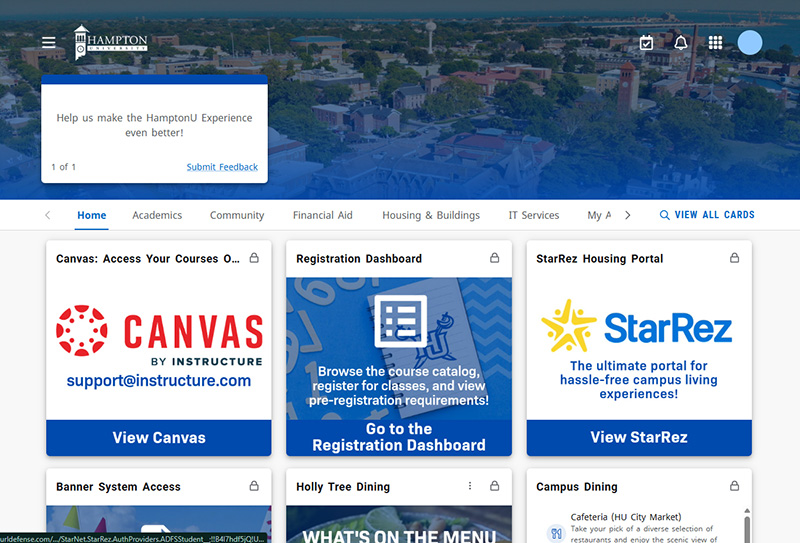
What can I do with HamptonU Experience?
- Access class schedules and course information in one centralized dashboard.
- View grades and academic progress in real time.
- Manage financial aid, tuition, and billing details easily.
- Receive personalized announcements and campus updates.
- Connect with campus services like advising, registration, and student support.
Can I still access the previous student portal, MyCampus Student Portal?
The myCampus portal and mobile app are no longer accessible. However, it is now used for public information about upcoming events and activities. Many services and tools previously available through MyCampus Student Portal have been transitioned to HamptonU Experience.
How do login to HamptonU Experience? What username and password should I I use?
To access the HamptonU Experience, you will find links on the Hampton University Website, Your Canvas dashboard, the HamptonU Mobile App, or simply by going to the URL https://experience.hamptonu.edu
To log in, you’ll need your:
- Hampton University email address:
- Students: firstname.lastname@my.hamptonu.edu
- Faculty/Staff: firstname.lastname@hamptonu.edu
- Microsoft 365 password:
- This is the same password that you use for other Hampton University services like StarRez, email, and the Financial Aid Portal.
- Forgot Password? At the login form, enter your Hampton University email address, then click Next. On the following screen, select “Forgot Password” to begin the password recovery process and reset your Microsoft 365 password.
How do I access my email through HamptonU Experience?
- Log in to the HamptonU Experience platform using your university email and Microsoft 365 password.
- Click the hamburger menu (☰) in the top-left corner of the screen.
- Select “Email” from the menu options.
- You’ll be directed to your Hampton University email inbox.
Can I customize my HamptonU Experience homepage?
- Drag and drop unlocked cards to rearrange them in the order you prefer.
- Locked cards (such as Canvas) cannot be moved or removed.
- To add more cards to your homepage, go to the View All Cards page, browse available cards, and click the save icon ( ) on the ones you want to keep.
How do I download the app for HamptonU Experience?

Why can't I find a card on my homepage?
- Your homepage starts with a default set of cards selected by the system.
- You can find all available cards on the View All Cards page.
- System administrators may occasionally add, move, or remove cards.
- If a card is missing from your homepage, check the View All Cards page to re-add it.
How do I access the student financial portal?
- Login to the HamptonU Experience.
- Navigate to the "View all cards" button on the right side of the page.
- After clicking "View all cards" use the search bar on the left side of the page, enter "Financial aid planning", and search.
- Click on the "Student Financial Aid Planning" card to be taken to the portal.
How do I register for classes within the HamptonU Experience?
- Login to the HamptonU Experience.
- Navigate to the "View all cards" button on the right side of the screen and click on it.
- In the search bar on the left side of the screen enter "Registration dashboard" and press enter.
- Click on the "Registration Dashboard" card to open the registration portal.
-
From there you are able to register and search for classes.
(They must meet with their academic advisor to have their registration hold removed)
How do I access my 'Week at a Glance' view?
- Login to the HamptonU Experience.
- Navigate to the "View all cards" button on the right side of the screen and click on it.
- In the search bar on the left side of the screen enter "Registration dashboard" and press enter.
- Click on the "Registration Dashboard" card to open the registration portal.
- Click on "Register for Classes", from here you will be able to see your Week at a Glance on the bottom of the screen.
How do I view my balance?
- Login to the HamptonU Experience.
- Navigate to the "View all cards" button on the right side of the screen and click on it.
- In the search bar on the left side of the screen enter "PiratePay" and press enter.
- Click on the "Pirate Pay" card to open the PiratePay portal.
- Login using your HUID number along with the PIN you would use to login to HUNet.
- You will now be able to access your account information.
How do I view my Unofficial Transcript?
- Login to the HamptonU Experience.
- Navigate to the "View all cards" button on the right side of the screen and click on it.
- In the search bar on the left side of the screen enter "Student Self-Service" and press enter.
- Click on the "Student Self-Service" card.
- Click on "Student Profile"
- There will then be a menu on the left side of your screen, toward the bottom "Unofficial Transcript" will be an option.
What is HamptonU Experience?
What can I do with HamptonU Experience?
- Access class schedules and course information in one centralized dashboard.
- View grades and academic progress in real time.
- Manage financial aid, tuition, and billing details easily.
- Receive personalized announcements and campus updates.
- Connect with campus services like advising, registration, and student support.
Can I still access the previous student portal, MyCampus Student Portal?
The myCampus portal and mobile app are no longer accessible. However, it is now used for public information about upcoming events and activities. Many services and tools previously available through MyCampus Student Portal have been transitioned to HamptonU Experience.
How do login to HamptonU Experience? What username and password should I I use?
To access the HamptonU Experience, you will find links on the Hampton University Website, Your Canvas dashboard, the HamptonU Mobile App, or simply by going to the URL https://experience.hamptonu.edu
To log in, you’ll need your:
- Hampton University email address:
- Students: firstname.lastname@my.hamptonu.edu
- Faculty/Staff: firstname.lastname@hamptonu.edu
- Microsoft 365 password:
- This is the same password that you use for other Hampton University services like StarRez, email, and the Financial Aid Portal.
- Forgot Password? At the login form, enter your Hampton University email address, then click Next. On the following screen, select “Forgot Password” to begin the password recovery process and reset your Microsoft 365 password.
How do I access HUNET from the HamptonU Experience or Canvas
How do I access my email through HamptonU Experience?
- Log in to the HamptonU Experience platform using your university email and Microsoft 365 password.
- Click the hamburger menu (☰) in the top-left corner of the screen.
- Select “Email” from the menu options.
- You’ll be directed to your Hampton University email inbox.
Can I customize my HamptonU Experience homepage?
- Drag and drop unlocked cards to rearrange them in the order you prefer.
- Locked cards (such as Canvas) cannot be moved or removed.
- To add more cards to your homepage, go to the View All Cards page, browse available cards, and click the save icon ( ) on the ones you want to keep.
How do I download the app for HamptonU Experience?
Why can't I find a card on my homepage?
- Your homepage starts with a default set of cards selected by the system.
- You can find all available cards on the View All Cards page.
- System administrators may occasionally add, move, or remove cards.
- If a card is missing from your homepage, check the View All Cards page to re-add it.
How do I access the student financial portal?
- Login to the HamptonU Experience.
- Navigate to the "View all cards" button on the right side of the page.
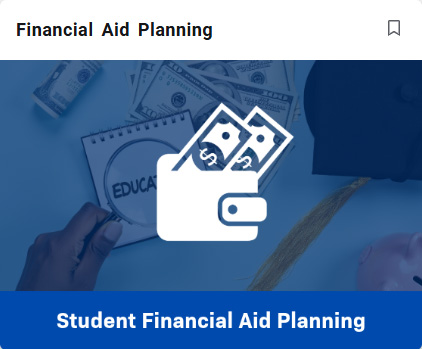
- After clicking "View all cards" use the search bar on the left side of the page, enter "Financial aid planning", and search.
- Click on the "Student Financial Aid Planning" card to be taken to the portal.
How do I register for classes within the HamptonU Experience?
- Login to the HamptonU Experience.
- Navigate to the "View all cards" button on the right side of the screen and click on it.
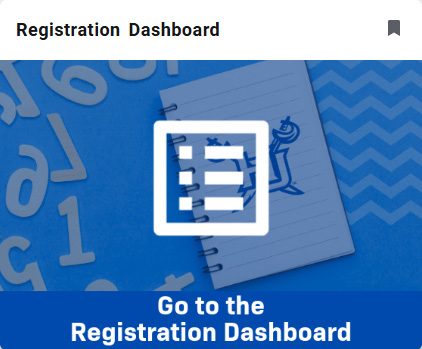
- In the search bar on the left side of the screen enter "Registration dashboard" and press enter.
- Click on the "Registration Dashboard" card to open the registration portal.
-
From there you are able to register and search for classes.
(They must meet with their academic advisor to have their registration hold removed)
How do I access my 'Week at a Glance' view?
- Login to the HamptonU Experience.
- Navigate to the "View all cards" button on the right side of the screen and click on it.
- In the search bar on the left side of the screen enter "Registration dashboard" and press enter.
- Click on the "Registration Dashboard" card to open the registration portal.
- Click on "Register for Classes", from here you will be able to see your Week at a Glance on the bottom of the screen.
How do I view my balance?
- Login to the HamptonU Experience.
- Navigate to the "View all cards" button on the right side of the screen and click on it.
- In the search bar on the left side of the screen enter "PiratePay" and press enter.
- Click on the "Pirate Pay" card to open the PiratePay portal.
- Login using your HUID number along with the PIN you would use to login to HUNet.
- You will now be able to access your account information.
How do I view my Unofficial Transcript?
- Login to the HamptonU Experience.
- Navigate to the "View all cards" button on the right side of the screen and click on it.
- In the search bar on the left side of the screen enter "Student Self-Service" and press enter.
- Click on the "Student Self-Service" card.
- Click on "Student Profile"
- There will then be a menu on the left side of your screen, toward the bottom "Unofficial Transcript" will be an option.
