Fixing DocuSign
Access to Hampton University DocuSign can be affected if you have already created a DocuSign Account using your *.hamptonu.edu email. This requires changing the email address on your previously created account. The steps to correct this are below
- Go to this link: https://account.docusign.com/me/ and login with your Hampton University email address .
Scroll down to the Email Address section and click UPDATE to the right. - (It will ask you to login again)It may warn you about changing the email address. Click CONTINUE.
- Put in a New Email address. Use something that does NOT end with @hamptonu.edu.
(I recommend using a personal account like Yahoo, Gmail, or even AOL.) - Click SEND CODE.
- Verify the email change by inputting the 6-digit code sent to your new email.
(If you get an “unknown error” when verifying, try using a different email address) - Log out of DocuSign.
- You should receive an activation email shortly.
- Once you complete the activation process, follow the steps below.
-
Open the HamptonU Experience at https://experience.hamptonu.edu
-
Click on “VIEW ALL CARDS” at the Top Right
-
Scroll down until you find the card labeled “DocuSign”
-
Click on the DocuSign Tile, and it should automatically log you into DocuSign.
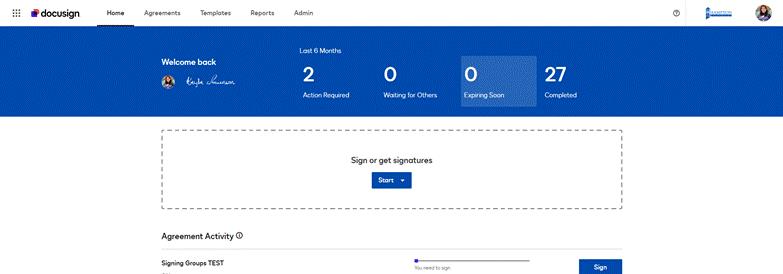
You should see a webpage similar to the screenshot below. (Hampton University Logo should be displayed at the top right)