
Features
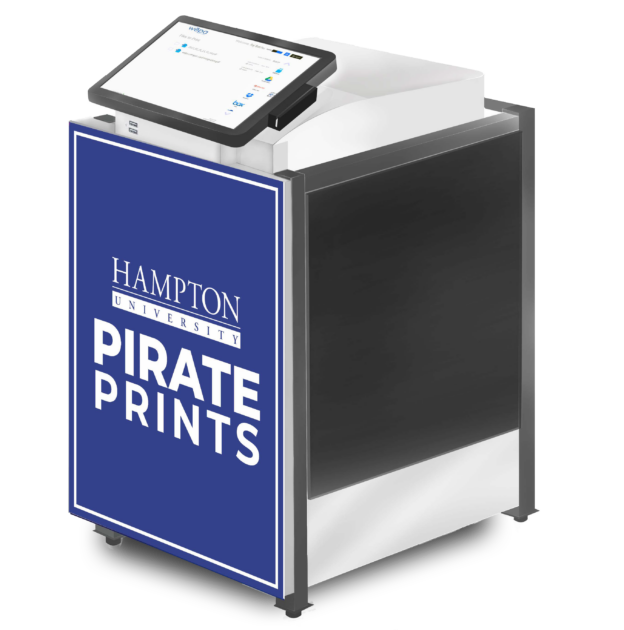
The Pirate Prints kiosks provide an easy and convenient way to print and scan documents. They feature:
- Printing and scanning in black-and-white and color
- Access to cloud-based printing at every kiosk by logging in, entering a code, or inserting a USB drive
- Minimal rates for printing and scanning to help save money on your own equipment, ink, and paper
- Pirate Prints kiosks are powered by wepa, who has partnered with PrintReleaf to reforest trees and achieve a paper-neutral footprint
Station Locations
- Bemis Lab – 2nd Floor Library
- Graduate Physics Research Center – 1st Floor
- Harvey Library – 1st Floor
- Harvey Library – 5th Floor
- Marine and Science – 1st Floor, Room 130
- McGrew Towers – Lobby
- MLK & Buckman – Rotunda
- Olin Building – 3rd Floor, Room 316
- S&T Main Lobby
- Scripps Howard – 2nd Floor, Room 221
- Student Center – Next to Theatre
- Residence Halls
- Armstrong Hall – Music Department next to door 138
- Douglas Wilder Hall – 1st Floor
- Dubois Hall – Lobby
- Dupont Hall – Dupont Entrance Next to time clock
- Franklin White Hall – Lobby
- Freeman & Kittell Hall – Rotunda
- Harkness Hall – Front Lobby
- Holland Hall – 1st Floor, Computer Lab
- James Hall – 1st Floor
- Kennedy Hall
- Twitchell Hall – 1st Floor, Recreation Room
- Virginia-Cleveland Hall – 2nd Floor, Common Area
- Wendell Holmes Hall – Lobby
How to Print and Scan
Hampton University students, faculty, staff, and guests can print or scan one of the following ways:
- Download the wepa app for Windows or Mac to print from your computer
- Upload documents from a mobile device using the wepa app available in the App Store and on Google Play
- Print directly from Canvas courses
- Access cloud-based storage (Google Drive, OneDrive, Box, etc.) directly from a Pirate Prints kiosk
- Upload documents to wepa using a web browser
- Email your documents to wepa and get a code to release the prints at a Pirate Prints kiosk
- Bring a USB drive to a kiosk
- Step-by-step instructions for printing with Pirate Prints are available online
Pirate Prints Rates (per sheet)
| Color, Setting, and Size | Single-sided | Double-sided |
| Black-and-white, Letter (8.5×11) | $.08 | $.14 |
| Color, Letter (8.5×11) | $.35 | $.60 |
| Black-and-white, Tabloid (11×17) | $.17 | $.33 |
| Color, Tabloid (11×17) | $.89 | $1.75 |
How to Pay
Get your documents at a Pirate Prints kiosk by using one of these convenient methods:
- wepa account: Add funds to your account online or at any Pirate Prints kiosk with a credit or debit card.
- PiratePay
- Credit and debit cards
Pirate Prints Support
The wepa user guide provides detailed instructions on how to use the Pirate Prints kiosks. For further assistance or account help, wepa support is available at 1-800-675-7639 or help@wepanow.com.
To report a problem with a print station (paper jam, in need of more supplies, etc.) follow the links below. Please be sure to include all relevant information (campus, building, location, type of problem, etc.)