Campus Wireless Networks

Pirates Wireless
(Students, Faculty, & Staff)

Pirates Guest
(Visitors)
Connecting to Pirates Wireless on Windows
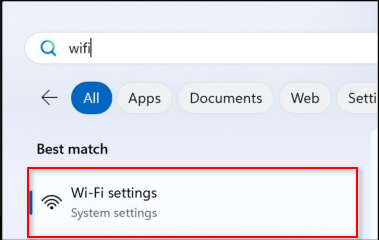
- Search for Wi-Fi settings from Windows Search.
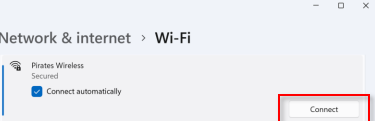
- Find Pirates Wireless from the list of available networks.
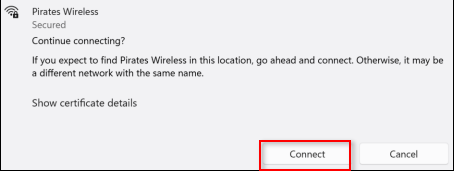
- Click on Connect.
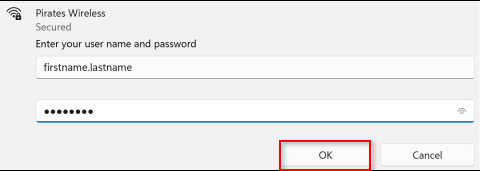
- Enter your INFOTECH Username and Password.
- Click on Connect.
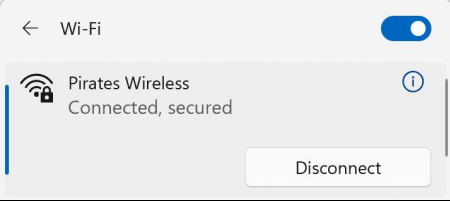
- You are now connected to Pirates Wireless.
Note: This is a one-time process. Once completed, you’ll be automatically connected the next time you enter campus.
Connecting to Pirates Wireless on iOS
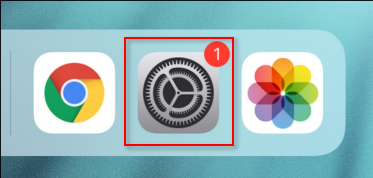
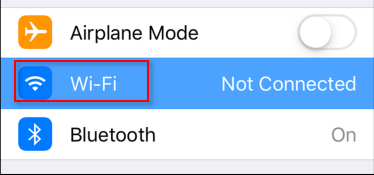
- Click on Settings.
- Click on Wi-Fi.
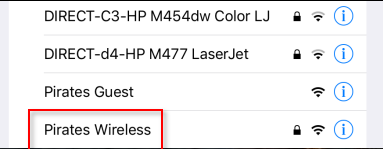
- Find Pirates Wireless from the list of available networks.
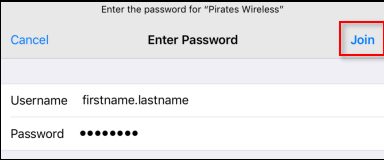
- Enter your INFOTECH Username and Password.
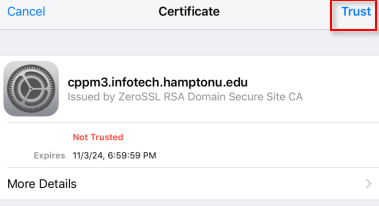
- Click on Trust and you will be connected.
Note: This is a one-time process. Once completed, you’ll be automatically connected the next time you enter campus.
Connecting to Pirates Wireless on Android
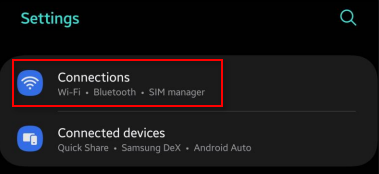
- Click on Settings
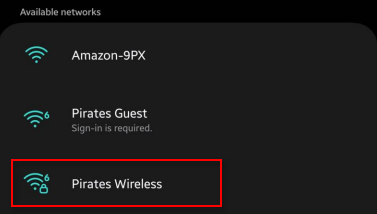
- Click on Wi-Fi
- Find Pirates Wirelessfrom the list of available networks
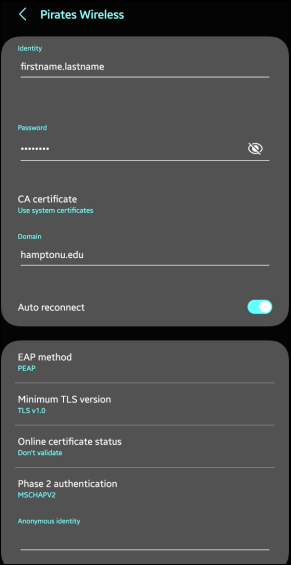
- Enter your INFOTECH Username and Password
- Choose “Use System Certificates”
- Enter Domain as “hamptonu.edu”
- Click on Connect and you will be connected
- Use additional settings in the picture if it does not connect with the default settings
Note: This is a one-time process. Once completed, you’ll be automatically connected the next time you enter campus.
Connecting to Pirates Wireless on MacOS
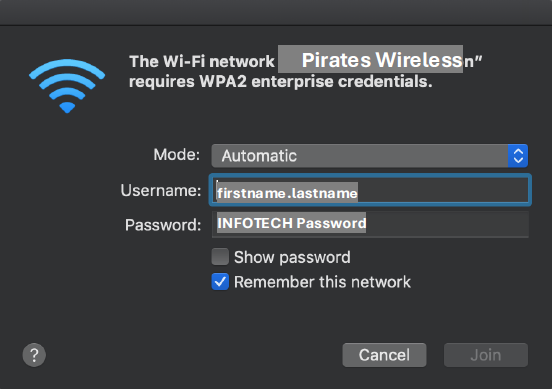
- Enter your INFOTECH Username and Password
- Click on Join and you will be connected
Note: This is a one-time process. Once completed, you’ll be automatically connected the next time you enter campus.
Connecting to Pirates Wireless on Chromebook
- Enter your INFOTECH Username and Password
- Choose “Default” for Server CA certificate
- Enter Domain as “hamptonu.edu” (if the field is available)
- Click on Connect and you will be connected
Note: This is a one-time process. Once completed, you’ll be automatically connected the next time you enter campus.
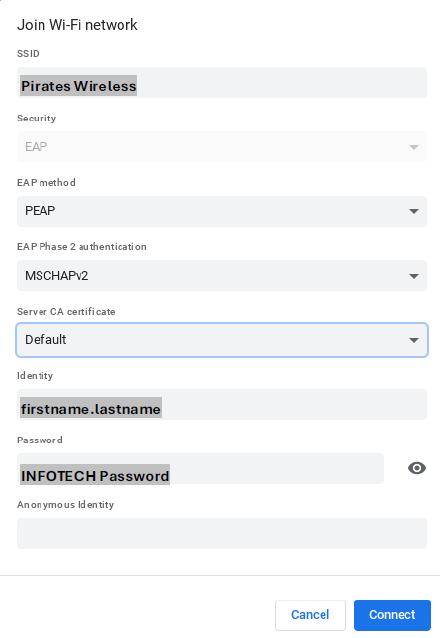
Manually Connecting to Pirates Wireless
SSID Name: Pirates Wireless
EAP Method: PEAP
Phase 2 Authentication: MSCHAPv2
CA certificate: use system certificates
Online Certificate Status: Do not verify or Do not validate
Domain: hamptonu.edu
Identity: [firstname.lastname]
Password: your password
Anonymous Identity: leave blank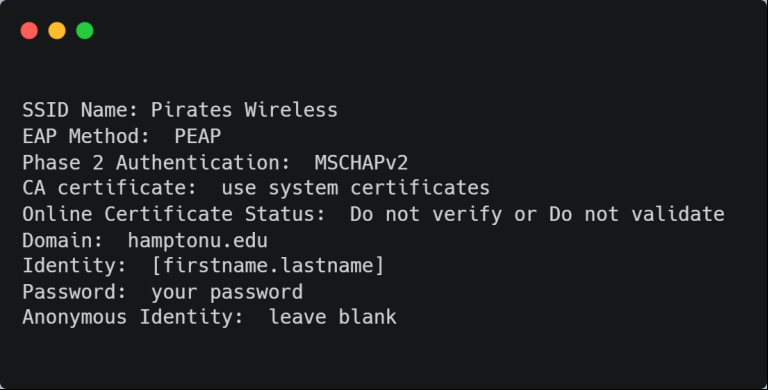
Connecting to Pirates Guest
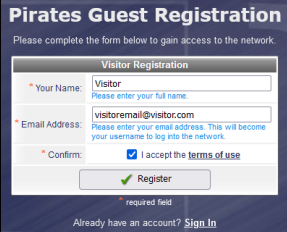
- Enter your Full Name and Email Address.
- Agree to the Terms of Use.
- Click on Register.
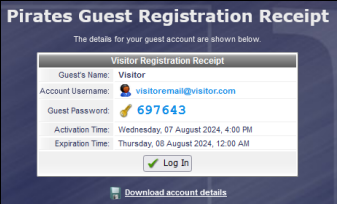
- You will receive 8 hours of Wi-Fi Access before required
to login again. - Click on Login and you will be connected.